
Planning a road trip with Google Maps can work well when you need to organize places, compare driving routes, and estimate time between stops. The short answer to “can i plan my trip on google maps?” is yes—but a map is a route-planning tool, not a complete itinerary. You’ll still need to research what’s worth seeing, confirm practical details, and leave room for a day that doesn’t go exactly to plan.
Decide what Google Maps should do for your trip
Use Google Maps to put destinations on a map, build a driving route, and get a sense of the distances between stops. Use travel research to decide which places deserve time, where you’ll stay, and what you want to learn or do along the way.
That division matters. Search results can produce a scattered collection of attractions with little context about how they fit together. A road trips app may help organize places or navigate, but an app alone can’t tell you whether a stop suits your interests or whether a destination merits an overnight stay. Online travel guides can add the background and practical context that pins don’t provide.
Start by writing down three things:
- Your trip’s start and end points
- The places you consider essential
- How many days you have, including arrival and departure days
Then decide what you want the map to answer. For example: Are the main stops in a sensible order? Which places are close enough to combine? Where might you break up a long drive?
Avoid trying to map every possibility immediately. First choose a broad region or a manageable set of destinations. If you’re still deciding how much coverage you need, how to choose an online travel guide for a US trip can help you think through the scope of your research. A national overview, a regional guide, and a guide focused on one destination serve different planning needs.
A road trips map is most useful once your priorities are clear. It can show where places sit in relation to one another; it can’t make a packed itinerary realistic just because the route line looks tidy. Treat drive estimates as a starting point, not a promise about how your day will feel.
Collect and group the places you want to visit
Before building a route, gather possible stops. Search for destinations, attractions, places to eat, and overnight areas, then save promising locations in a way you can recognize later. Google Maps offers ways to save places, though the available labels and controls may differ by device or change over time.
Keep the first pass broad, but don’t treat every saved pin as a commitment. A useful candidate list helps you compare options; a list that becomes too large can make it harder to see the trip’s shape.
Organize places by purpose. Depending on the trip, useful groups might include:
- Overnight stays
- Main attractions
- Short stops and viewpoints
- Food or grocery options
- Backup ideas for weather or schedule changes
Use clear names if you create lists. “Day 2 possibilities” is more useful later than a collection of indistinguishable saved places. If the map interface doesn’t support the categories you want, keep a simple notes document or itinerary alongside it.
Next, check each place before adding it to the route. Look for its location, current operating information, and whether it’s a realistic stop for your planned day. For attractions with limited hours, reservations, seasonal access, or other restrictions, confirm details through the destination’s own information before you travel. A saved pin is not confirmation that a place will be open or accessible.
Use online travel guides and local destination information to fill in what a map doesn’t explain: why a place is interesting, how long you might want to spend there, and what else is nearby. Our free US travel guide alternative to a static book explains how digital research can complement a fixed guidebook when you want information that’s easier to revisit while planning.
One practical check: if two saved stops are near each other, decide whether they belong on the same day before adding both to a driving route. Nearby pins can still require more time than expected, especially if you want to explore rather than simply pass through.
Build a multi-stop route from your saved places
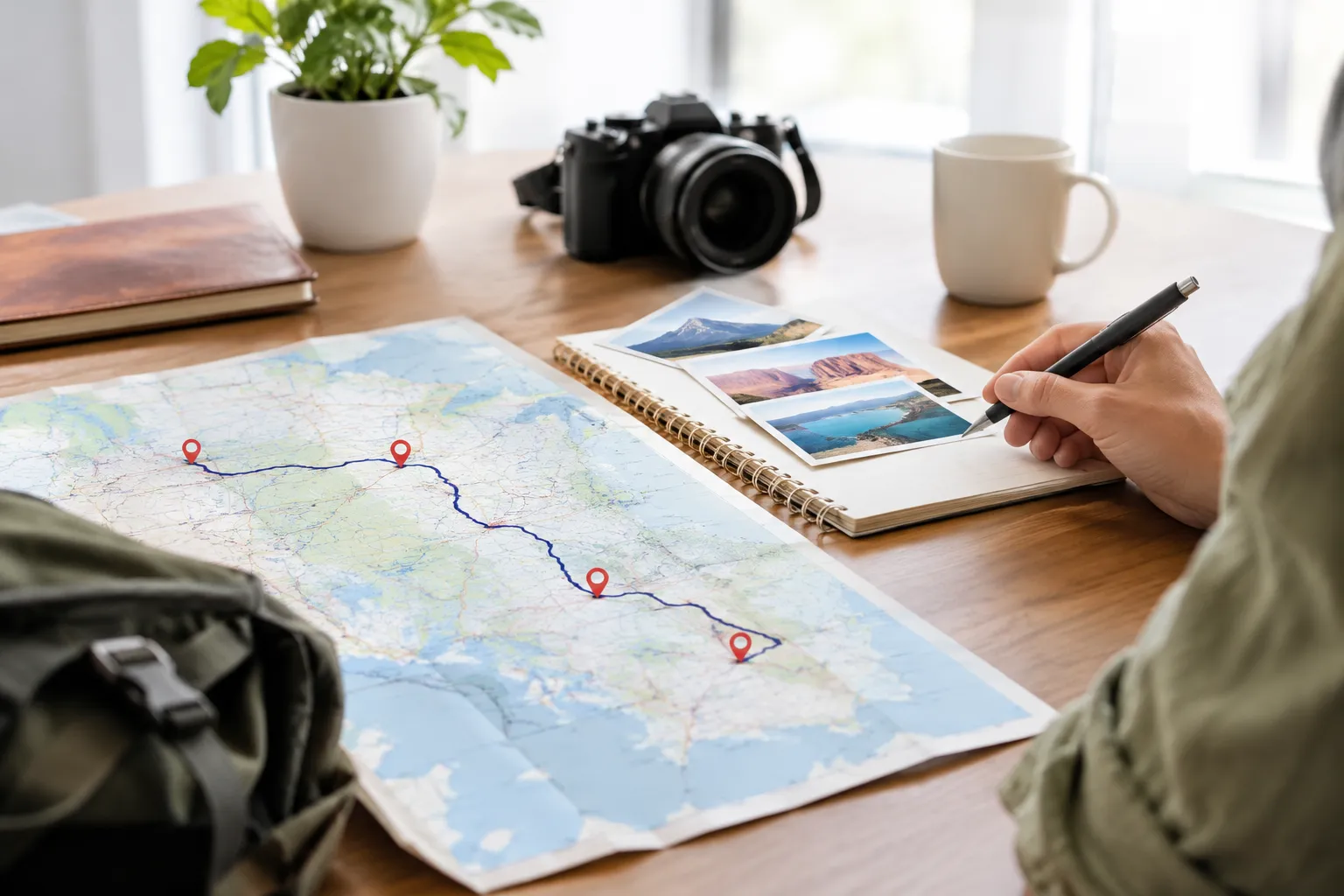
A saved list and a directions route do different jobs. A list is a collection of places you may want to visit; a route connects selected destinations in a chosen order and gives driving directions between them. Keep candidate stops in your list until you decide they belong in the actual plan.
Add destinations and put them in trip order
Open directions, enter your starting point, and add the destinations you’ve chosen for that leg of the trip. Select driving as the travel mode when you’re planning to drive. On most versions of the service, you can add intermediate stops and adjust their order, but the interface and limits can vary. If a route becomes unwieldy, divide it into separate daily legs.
Put the stops in the order you intend to visit them. Start with the fixed points—such as your lodging or a timed reservation—then add nearby sights that make sense around them. If you’re planning a loop, check that the final stop leads sensibly back toward your overnight location or the next day’s starting point.
A simple example might look like this:
- Start at your overnight stay.
- Visit the main attraction you most want to see.
- Add a nearby secondary stop if time allows.
- End at the next overnight area.
This is a planning structure, not a required formula. The right order depends on your priorities, opening hours, and where you’re staying.
Avoid treating the route as a complete day plan. A line between stops doesn’t account for time spent exploring, parking, eating, or waiting. If you’re researching how to map a US road trip route, work from the trip’s fixed commitments outward: first the start, end, and overnight points, then the stops that fit between them.
Choose driving directions and review route options
After entering your stops, check that driving directions are selected. Review the available route options rather than assuming the first one is the best fit. A route that looks shorter may not match your preference for a particular highway, a scenic detour, or a stop you’ve planned.
Look at the full route, not just one segment. Check whether it passes through the places you intended to visit and whether the sequence still makes sense. If the service offers more than one route, compare the paths and estimated times, then confirm which one matches your priorities.
Mapping tools can change, and their route information is not a substitute for checking current conditions or local access details. Before travel, review important road and destination information through relevant official or local sources, especially when your plans depend on a specific road, entrance, or timed stop.
For a broader planning method that goes from saved pins to workable driving days, see road trips map planning: from pins to driving days. It’s useful to make the route serve the day, rather than forcing the day to serve a long list of pins.
Check drive times and make room for discoveries
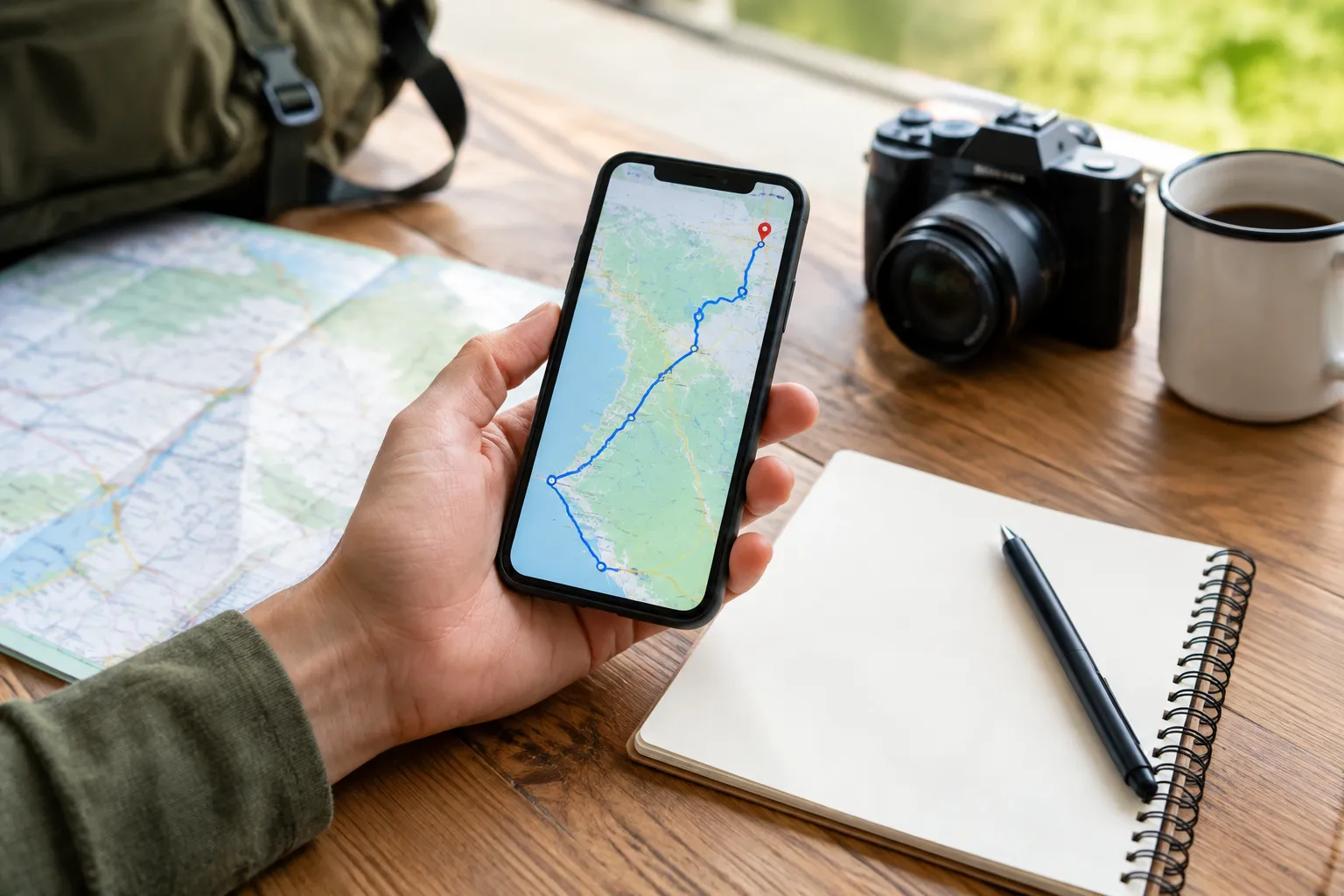
Once you have a draft route, use the estimated drive times to divide destinations into manageable days. Add up the driving between stops, then consider what else the day requires: meals, breaks, check-in, parking, and time at the places you came to see.
A map estimate covers the drive under the conditions reflected by the service. It doesn’t tell you how long you’ll want to stay at a museum, how busy a viewpoint will be, or whether you’ll want an unplanned break. Don’t fill every open hour with another destination.
Try grouping stops around overnight locations:
- Choose the main activity for each day.
- Add nearby stops that fit naturally around it.
- Keep optional places separate from must-see plans.
- Check whether the day still works if one stop takes longer than expected.
If a day feels crowded, remove a stop or spend the night closer to the places you want to visit. If it looks unusually empty, keep some of that space open rather than automatically adding another long detour. A relaxed schedule makes it easier to follow a worthwhile discovery without putting the rest of the trip under pressure.
Build in time for discoveries deliberately. You might leave a flexible block near a town, scenic area, or cluster of attractions, then decide what to do once you have better information. A road trips app can help you locate a saved place while traveling, but use your judgment before adding a detour. Check its location, the added driving, and whether it fits the day.
For a wider look at which planning and navigation functions matter, read road trips app features that actually help. The goal is not to collect every tool or pin; it’s to have a plan that still works when you make a change.
Save, share, and prepare your plan for the road
Before the trip, make sure you can find your saved places and route again. Confirm that you’re using the account and device where you saved them, and check that the route opens as expected. If you’re traveling with someone else, decide how you’ll share the plan and who will update it.
A map link can be useful for sharing a route, but access and editing depend on the service’s sharing options and the way the plan was created. If companions need to make changes, check the specific sharing controls rather than assuming that everyone with a link can edit. For a group trip, keep one agreed-upon version of the itinerary to reduce confusion.
Prepare for areas where mobile service may be limited. If offline maps are available for your destination, download the needed area in advance and confirm that it’s ready on your device. Offline availability and features can vary, and saved routes or places may not behave exactly like an active online route. Keep essential addresses or directions somewhere you can access without relying on a live connection.
Before leaving each day, review the route and any time-sensitive plans. Road conditions, opening hours, access, and other details can change. Check the information that matters for your next stop and adjust the route if needed.
Most of all, treat the map as a flexible guide rather than the itinerary itself. A complete plan also includes where you’ll sleep, which activities need advance arrangements, and what you’ll do if a stop is unavailable. Travel guides can provide the destination context behind the route; the map helps you connect the places you choose.
Google Maps Trip Planning FAQ
How do you plan a trip?
Choose your start and end points, select the places that matter most, and group them into realistic days around overnight stays. Use a map to check distances, then confirm practical details separately.
Can you draw your own route on a map?
You can create a route by adding destinations and arranging them in order, but standard driving directions follow available roads rather than letting you freely draw every turn. Check whether a custom map tool better suits your needs.
Is there a travel itinerary template from Google?
There isn’t a dedicated itinerary template in a map view; you can organize places and directions, then keep dates, lodging, and daily plans in a separate document or itinerary tool.
Does a map save your trip?
Saved places and routes may be available through the account or sharing method you used, but a directions route and a saved place list are different. Reopen your plan before departure to confirm access.
Can you create and save a trip in a map app?
You can build a trip plan by saving places and creating routes, but the exact saving options depend on the app and device. Keep essential dates and lodging details somewhere separate too.
Is there a trip planning feature in a map app?
Map apps can help organize places and directions, but they don’t necessarily provide a full itinerary with lodging, activity details, and destination background. Use travel research alongside the map.
How many stops can you add to a route?
The number of stops allowed can vary by device, route type, and current app limits. If your trip has many destinations, split it into daily routes and check each leg separately.
Can someone else edit your trip plan?
Sometimes, depending on how the plan is shared and the editing options available. Check the sharing settings directly, and agree with travel companions on which version is the current plan.
Recommended next steps
Start with your fixed points: trip dates, start and end locations, and overnight stays. Save the places you’re considering, group them by day, and build a separate route for each driving leg. Then review the estimated travel time and remove stops that make a day feel too tight.
Use online travel guides to research the places behind the pins, including nearby attractions and practical details that help you decide what belongs in the itinerary. Keep optional stops separate, confirm time-sensitive information before you go, and revisit the route as plans change.
Google Maps can make it easier to see how a road trip fits together. The most useful plan comes from combining that road trips map with thoughtful destination research and enough flexibility to enjoy the unexpected.